Build a workflow graph
A workflow is a visual canvas for building and running complex operations (calibration, simulation, and stratification) on models and data.
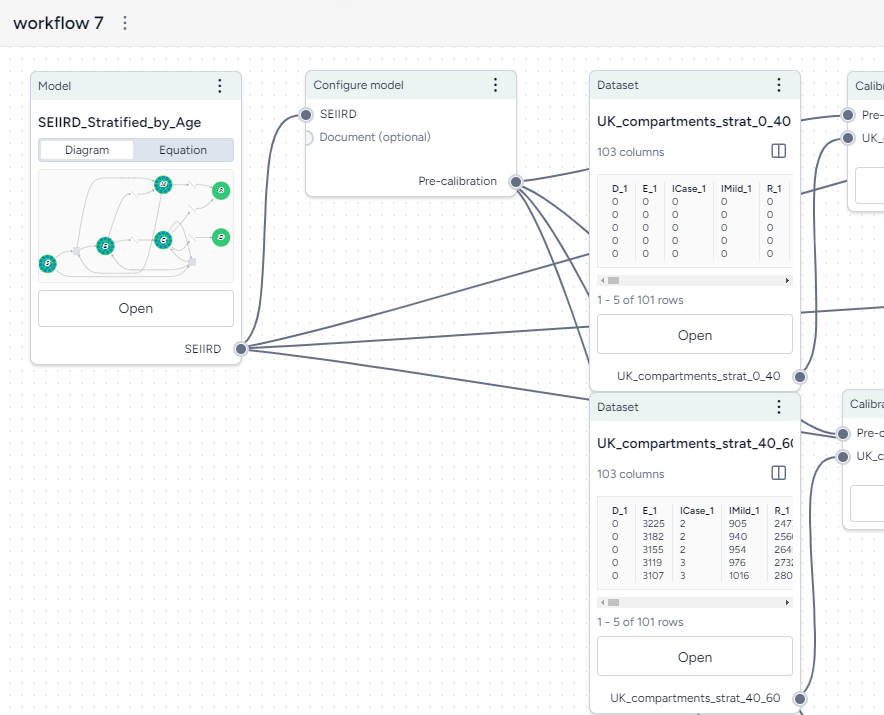
Create a new blank workflow
- In the Resources panel, click New in the Workflows section.
- Enter a name for the workflow and click Create.
Create a new workflow based on a template
- In the Resources panel, click New in the Workflows section.
- Select the template for the type of workflow you want to create.
-
Enter a name for the workflow, set the required inputs and outputs, and then click Create.
Note
Before you can use a template, your project must contain the inputs (models, model configurations, or datasets) you want to use.
Create new workflows based on templates
The following workflow templates streamline the process of building common modeling workflows. They provide preconfigured and linked resources and operators tailored to your objectives, such as analyzing uncertainty, forecasting potential outcomes, or comparing intervention strategies.
Note
- Before you can fill out a template, your project must contain the inputs (models, model configurations, or datasets) you want to use.
- Before you can see the results of a templated workflow, you must configure and run any Calibrate, Simulate, or Compare datasets operators it contains.
- You can create new intervention policies with the template. Once the workflow is created, you must create the Create intervention policy operator and add your intervention criteria.
Situational awareness
Use this template to determine what's likely to happen next. For example, you can:
- Anticipate the arrival of a new variants.
- Evaluate the potential impact of growing vaccine hesitancy and declining Non-Pharmaceutical Interventions (NPIs).
Fill out the Situational awareness template
To use the Situational awareness template, select the following inputs and outputs:
-
Inputs
- Model
- Model configuration
- Dataset
-
Outputs
- Metrics (model states) of interest
Complete the Situational awareness workflow
The new workflow first calibrates the model to historical data to obtain the best estimate of parameters for the present. Then it forecasts the model into the near future. To see the results, you first need to open the Calibrate operator and:
- Map the model variables to the dataset columns.
- Run the calibration.
This creates:
- Charts comparing the selected model states before and after calibration with observations from the dataset.
- A new model calibrated to the dataset.
Sensitivity analysis
Use this template to determine which model parameters introduce the most uncertainty in your outcomes of interest. For example, you can explore:
- Unknown severity of new variant.
- Unknown speed of waning immunity.
Fill out the Sensitivity analysis template
To use the Situational awareness template, select the following inputs and outputs:
-
Inputs
- Model
- Model configuration
- One or more uncertain parameters of interest and the ranges to explore
- Simulation settings (optional)
-
Outputs
- Metrics (model states) of interest
Complete the Sensitivity analysis workflow
The new workflow first configures the model with parameter distributions that reflect all the sources of uncertainty. Then it simulates the model into into near future. To see the results, you first need to open the Simulate operator, edit any settings, and run it. This creates:
- A sensitivity analysis chart for each selected model state and pairwise comparison charts for each selected parameter.
- A simulation results dataset.
Decision making
Use this template to determine the impact of different interventions. For example, you can find:
- The impact of several combinations of vaccination and Non-Pharmaceutical Interventions (NPIs) levels.
- Whether it's better to implement an intervention in all locations, select locations, or not at all.
Fill out the Decision making template
To use the Decision making template, select the following inputs and outputs:
-
Inputs
- Model
- Model configuration
- One or more intervention policies
- Simulation settings (optional)
-
Outputs
- Metrics (model states) of interest
Complete the Decision making workflow
The new workflow first runs simulations for the baseline (no intervention) and each intervention policy. It then compares the relative impact of each intervention policy to the baseline. To see the results, you first need to:
- Open and run each Simulate operator.
- Open and run the Compare datasets operator.
This creates a comparison of the simulated baseline and intervention policies.
Horizon scanning
Use this template to determine how extreme scenarios impact the outcome of different interventions. For example, you can explore:
- Potential emergence of a new variant.
- Rapidly waning immunity.
Fill out the Horizon scanning template
To use the Horizon scanning template, select the following inputs and outputs:
-
Inputs
- Model
- Model configuration
- One or more uncertain parameters of interest and the ranges to explore
- One or more intervention policies (optional)
- Simulation settings (optional)
-
Outputs
- Metrics (model states) of interest
Complete the Horizon scanning workflow
The new workflow first configures the model to represent the cartesian product of the extremes of uncertainty for some parameters. It then simulates into the near future with different intervention policies and compares the outcomes. To see the results, you first need to:
- Open and run each Simulate operator.
- Open and run the Compare datasets operator.
This creates a comparison of the simulated extreme scenarios.
Value of information
Use this template to determine how uncertainty impacts the outcomes of different interventions. For example, you can determine whether:
- Uncertainty in severity changes the priority of which group to target for vaccination.
- Disease severity impacts the outcome of different social distancing policies.
Fill out the Value of information template
To use the Value of information template, select the following inputs and outputs:
-
Inputs
- Model
- Model configuration
- One or more uncertain parameters of interest and the ranges to explore
- One or more intervention policies
- Simulation settings (optional)
-
Outputs
- Metrics (model states) of interest
Complete the Value of information workflow
The new workflow first configures the model with parameter distributions that reflect all the sources of uncertainty. It then simulates into the near future with different intervention policies. To see the results, you first need to:
- Open and run each Simulate operator.
- Open and run the Compare datasets operator.
This creates a comparison of the uncertainty across the different interventions.
Reproduce models from literature
Use this template to reproduce models from literature and then compare them to find the best starting point. For example, you can determine whether:
- The results from a paper are reproducible.
- The best model from a group of recent papers to explore disease transmission.
Fill out the Reproduce models from literature template
To use the Reproduce models from literature template, select the following inputs and outputs:
-
Inputs
- One or more documents
- A brief description of your goal for comparing the resulting models (optional)
-
Outputs
- New models extracted from the documents
- Model configurations for each model
- Comparison of the models tailored to your goal
- Simulation results for the selected model configurations
Complete the Reproduce models from literature workflow
The new workflow first extracts the models from the documents. It then compares the models according to your goal and configures and simulates them into the near future. To see the results, you first need to:
- Open each Create model from equations operator, select the relevant equations from the paper, and run the operator to create the model.
- Open and run the Compare datasets operator.
- Open and edit the Configure model operators.
- Open and run the Simulate operators.
Calibrate an ensemble model
Use this template to create a more accurate model by combining multiple models in an ensemble. For example, you can determine how to:
- Leverage the strengths of each model to make the most accurate model possible.
Fill out the Calibrate an ensemble model template
To use the Calibrate an ensemble model template, select the following inputs and outputs:
-
Inputs
- A historical dataset
- Two or more models, each with their own model configurations
- A mapping of the timestamp values that the dataset and models share
- Additional mappings for each variable of interest that the dataset and models share
-
Outputs
- Simulation results each selected model configuration
- Calibrations against the historical for each of the selected model configurations
- Calibrated ensemble model based on each of the calibrations
Complete the Calibrate an ensemble model workflow
The new workflow first simulates and calibrates each model individually, then calibrates the ensemble. To see the results, you first need to:
- Open and run each Simulate operator.
- Open and run each Calibrate operator.
- Open and run the Calibrate ensemble operator.
Add resources and operators to a workflow
Workflows consist of resources (models, datasets, and documents) that you can feed into a series of operators that transform or simulate them.
Each resource or operator is a "node" with a title, thumbnail preview, and a set of inputs and outputs.
Add a resource to the workflow
- Drag the model, dataset, or document in from the Resources panel.
Add an operator to the workflow
Perform one of the following actions:
- Right-click anywhere on the graph and then select an operation from the menu.
- Click Add component and then select the operation from the list.
Connect resources and operators
Inputs and outputs on nodes let you resources and operators together to form complex model operations.
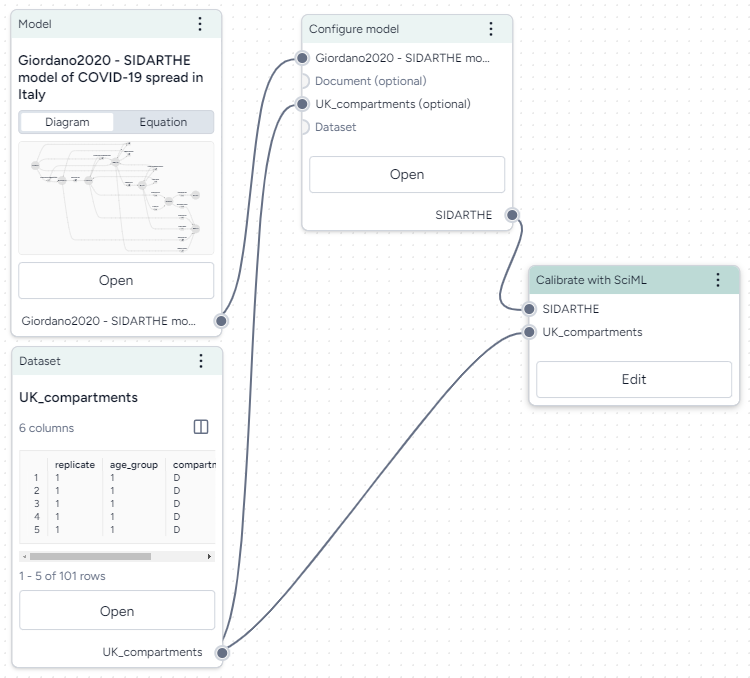
Connect resources and operators already in the workflow
- Click the output of one resource or operator and then click the corresponding input on another operator.
Example
- To configure a Calibrate operation to use a dataset, first click the output on the right side of the Dataset operator and then click the Dataset input on the left side of the Calibrate operator.
Connect resources and operators to a new operator
- Hover over the output of the resource or operator, click Link , and then select an operator.
Remove a connection between resources and operators
- Hover over the input or output and click Unlink.
Operators with yellow headers
An operator with a yellow header indicates that a resource or indicator that flows into it has changed and the operator needs to be rerun.
Edit resource and operator details
Resources and operators in the workflow graph summarize the data and inputs/outputs that they represent. You can drill down to view more details or settings.
View resource or operator details
Perform one of the following actions:
- Click Open.
- Click > Open in new window.
Duplicate a resource or operator
- Click > Duplicate
Manage a workflow
To organize your workflow graph, you can move, rearrange, or remove any of the operators.
Save a workflow
Terarium automatically saves the state of your workflow as you make changes.
Rename a workflow
- Click > Rename, type a unique name for the workflow, and press Enter.
Move a workflow operator
- Click the title of the operator and drag it to another location on the graph.
Remove a workflow operator
- Click > Remove.
Zoom to fit workflow
You can quickly zoom the canvas to fit your whole workflow to the current window.
Note
In some cases, parts of your workflow may be just off screen after the zoom.
- Click Reset zoom.