Simulate ensemble
More info coming soon.
Simulate ensemble operator
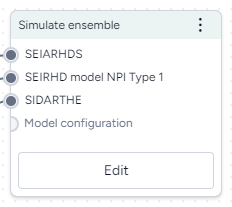
-
Inputs
Model configurations
-
Outputs
Simulation data
Run an ensemble simulation
Run an ensemble simulation
- Configure two or more models.
- Right-click anywhere on the workflow graph and select Simulation > Simulate ensemble.
- Connect the Configure model outputs to the Simulate ensemble inputs.
- Click Open.
- Create a mapping between the state variables of the model configurations.
- Enter custom weights for the model configurations to specify your confidence in them.
- Select a Preset, Fast or Normal.
- Set the time span:
- End time
- Number of timepoints
- Number of samples
- Choose a Solver method, dopri5, rk4, or euler.
- Click Run.
Troubleshooting
Recommended run settings
It's recommended you run simulations on the Normal Preset using the dopri5 Solver method.
Simulate each model first
Try simulating each model independently to confirm the models are composed and configured correctly.
Relative certainty
Set the Relative certainty in the Model weights to 1 for each model. When using this setting, proceed slowly and cautiously. To include a preference for one model over the others, start by increasing its Relative certainty to 2, then 3, and so on.
Uncertainty and number of samples
If your models have no uncertainty in parameter values, only one sample is needed. Change Number of samples to 1 (the default zis set to 100).
Simulation length and number of samples
If you plan to run your simulation for a long time or with a large number of samples (for example, End time or Number of samples > 100), set them to a lower value (10 or 20) first and run a check for errors.
Error messages
PyCIEMSS error messages should offer guidance on how to proceed. Error messages from Pyro or torchdiffeq may be less clear.
Cholesky factorization
If you see a message referencing Cholesky factorization (including The factorization could not be completed because the input is not positive-definite):
- If you successfully simulated each model independently, check that the models are on the same scale and have similar initial conditions. Errors are likely if:
- One model assumes a population of 10 million, while another has a population of 1,000.
- One model is normalized to a population of one while the others are not.
AssertionError
If the simulation fails and shows an AssertionError: underflow in dt 0.0 error, the configuration has made the model unsolvable with the selected solver Method. This often happens with the dopri5 solver method.
- Workaround: Try using a different solver method, such as rk4 or euler. These solvers are be less efficient than dopri5, but they are also less likely to get caught in an unworkable state