Create a model from equations
The Create model from equations operator helps you to recreate a model from literature or build a new model from LaTeX equations . In this process, you:
- Choose or enter the equations you want to include in the model.
- Create the model as an output or resource for use in other modeling and configuration processes.
Note
When you upload a document to your project, Terarium automatically extracts any ordinary differential equations it contains and converts them to LaTeX. However, the extraction doesn't handle all the ways that equations can represent models. Before using any equations, check and edit them if needed.
Create model from equations operator
In a workflow, the Create model from equations operator takes an optional document as an input and outputs a new model. You can use the operator without any inputs by entering or uploading LaTeX equations that represent the model you want to create.
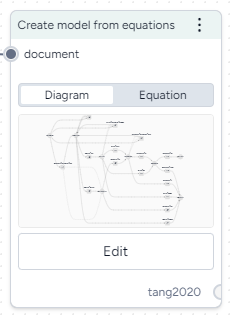
Once you have created a model, the operator in the workflow shows its underlying diagram or equations.
How it works: Model Service
-
Inputs
Document (optional)
-
Outputs
Add the Create model from equations operator to a workflow
-
Perform one of the following actions:
- Hover over the output of a Document and click Link > Create model from equations.
-
Right-click the workflow graph and select Modeling > Create models from equations.
If needed, connect the output of a Document to the Create model from equations input.
Choose the equations
You can create a model from a set of ordinary differential equations by:
- Selecting equations from a document in your project.
- Uploading and extracting equations from an image.
- Manually entering equations as LaTeX code.
To ensure the best results, Terarium uses a set of LaTeX formatting guidelines when converting extracted equations. It is recommended that you follow these guidelines for any LaTeX you add or edit as well.
Select equations from a document
To recreate a model from literature, you can select any ordinary differential equations extracted from an input document. Terarium represents each equation as LaTeX.
In some cases you may want to change the LaTeX either to correct or and new details. As you edit the LaTeX, the equation is automatically updated.
Select equations from a document
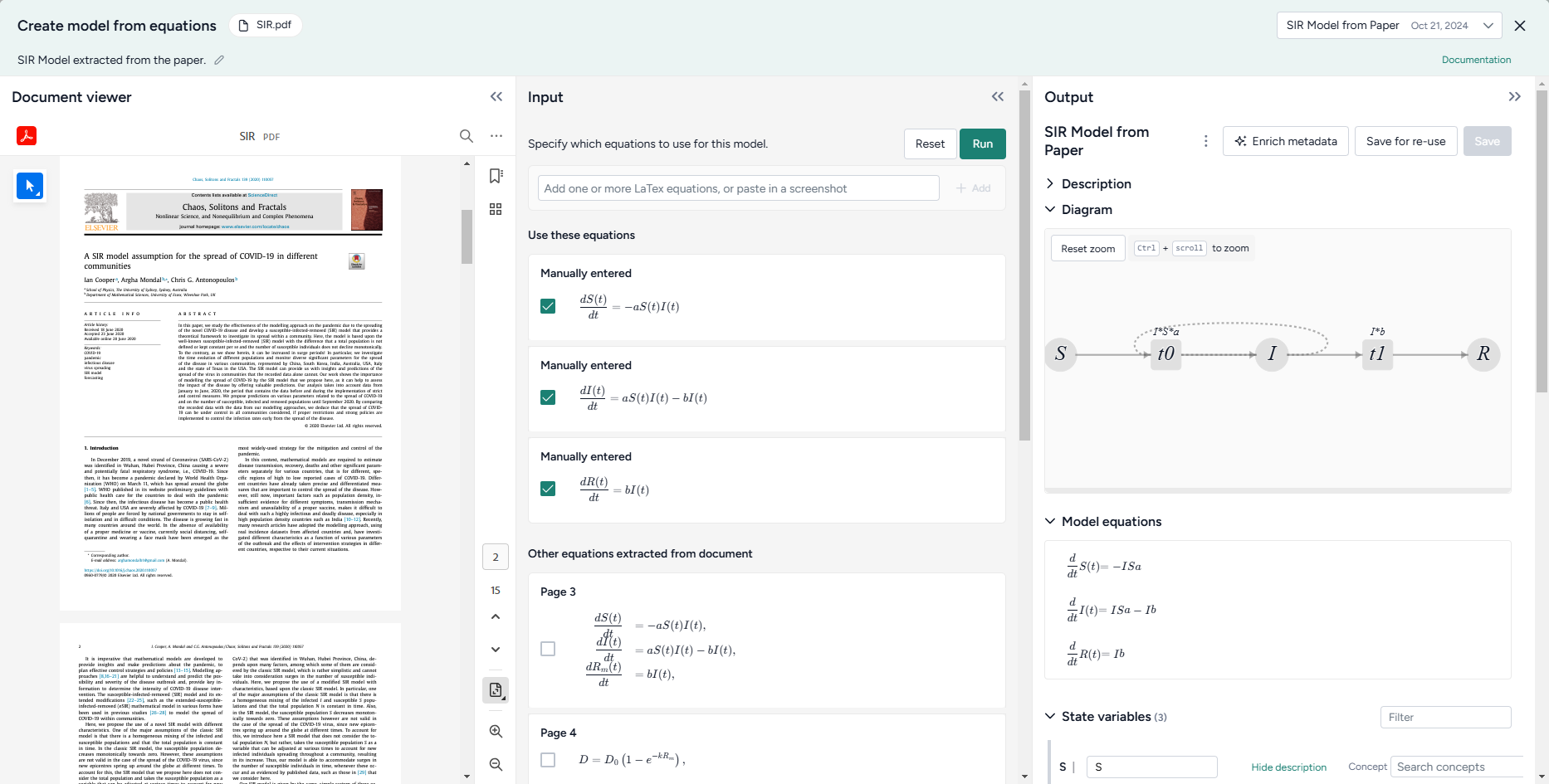
- In the workflow, make sure the document is connected to the operator input and then click Open.
- In the Input panel, review and select the equations you want to include in the model.
Edit equations extracted from a document
Note
When you modify equations extracted from a document, your changes are only saved to the current Create model from equations operator. If you reuse the document in another Create model from equations operator, you need to make the edits again.
- Click an equation to jump to where it's found in the document and reveal the converted LaTeX code.
- Edit the code as necessary and verify that the updated equation matches your edits.
- Select the check box next to the equation to include it in the model.
Extract equations from an image
In some cases, Terarium may not extract all the equations you want from a document. Or you may have equations from other sources that you want to bring into your project. In these cases, you can capture a screenshot of the equations and load them into Terarium for automatic extraction.
Extract equations from an image
- Take a screenshot of the equations you want to use or copy a saved image of the equations.
- Click inside the text box and paste your image. For example, right click and select Paste or press Ctrl+V.
- Click Add.
- Review the new equations. Click to reveal the LaTeX code and edit it if necessary.
Enter your own equations
In addition to selecting extracted equations, you can also paste or enter LaTeX code from elsewhere.
Manually enter equations
- Use the text box to add LaTeX equations to enter a new equation and click Add.
- Repeat step 1 for each equation you want to add.
Manually copy an equation from a document
If the automatic extraction missed an equation from your document, you can still copy it and add it separately.
- Select the text in the document viewer and then click Copy text.
- Paste the equation into the Input text box and edit as necessary.
- Click Add.
Recommended LaTeX format
The Create model from equations operator works with LaTeX equations. Before it creates a model, Terarium uses an AI assistant to "clean" your edited equations according to the following guidelines. You can follow these same guidelines yourself or enter equations as you normally would and then check the AI-cleaned equations for errors such as missing terms or duplicated parameters.
-
Derivatives
-
Write derivatives in Leibniz notation, not Newton or Lagrange notation.
Recommended:
\frac{d X}{d t}
Not recommended:\dot{X}
Not recommended:X^\primeorX' -
Represent partial derivatives of one-variable functions as ordinary derivatives.
Recommended:
\frac{d X}{d t}
Not recommended:\partial_t X
Not recommended:\frac{\partial X}{\partial t} -
Place first-order derivatives to the left of the equal sign.
-
-
Mathematical notations
- Avoid the use of:
- Capital sigma (
Σ) and pi (Π) notations for summation and product. - Non-ASCII characters.
- Homoglyphs (characters that look similar but have different meanings).
- Capital sigma (
-
To indicate multiplication, use
*.Recommended:
"b * S(t) * I(t)Not recommended:b S(t) I(t) -
Rewrite expressions with negative exponents as explicit fractions.
Recommended:
"\frac1{{ N }}Not recommended:N^1
- Avoid the use of:
-
Parentheses
- When grouping algebraic expressions, don't use square brackets
[ ], curly braces{ }, or angle brackets< >. Use parentheses( )if needed. -
Always expand expressions surrounded by parentheses using the order of mathematical operations.
Recommended:
\alpha * x(t) * y(t) + \beta * x(t) * z(t)Not recommended:x(t) (\alpha y(t) + \beta z(t))
- When grouping algebraic expressions, don't use square brackets
-
Variable and symbol usage
-
For variables that have time
tdependence, write the dependence explicitly as(t),Recommended:
X(t)
Not recommended:X -
For variables and names, avoid the use of words or multiple character.
- If needed, use camel case (
susceptiblePopulationSize) to combine multi-word or multi-character names. - Replace any variant form of Greek letters (
\varepsilon) with their main form (\epsilon) when representing a parameter or variable. - Don't separate equations by punctuation (commas, periods, or semicolons).
-
-
Superscripts and subscripts
- To denote indices, use LaTeX subscripts
_instead of superscripts and LaTeX superscripts^. - Use LaTeX subscripts
_instead of Unicode subscripts. Wrap all characters in the subscript in curly brackets{...}.
- To denote indices, use LaTeX subscripts
Create the model
Once you have selected the equations you want to use, you can create a new model as:
- An output you can connect to other operators in the same workflow.
- A project resource that you can use in any of your workflows.
- A downloadable JSON file you can use in external tools.
Note
Before it creates a model, Terarium uses an AI assistant to "clean" the selected equations according to the LaTeX formatting guidelines. When the model is ready, the Input panel shows the equations "Edited by AI" that appear in the model.
Create a new model from the selected equations
When you run the Create model from equations operator, the newly created model becomes an output you can connect to other operations in the same workflow.
-
Click Run.
Run options for creating models
Terarium supports two methods for creating models from equations:
- MIRA uses LLM assistance to standardize LaTeX equations , translate them to SymPy equations , and then create a Petri Net model.
- SKEMA uses regular expressions to rigidly parse LaTeX equations and create a Petri Net model.
MIRA is the default and recommended model. SKEMA can be used as a workaround when MIRA generates errors or inaccurate results. SKEMA is most reliable for equations with no parentheses, no production/degradation, and no complex rate law expressions.
-
Review the new equations. If you need to make changes, edit the equations in the Input panel and click Run again.
- If needed, use the Output panel to enrich the model metadata and then click Save.
Save the new model as a resource for use in other workflows
By default, the new model only appears as an output of the Create new model. You can make it available for use in other workflows by saving it as a project resource.
- In the Output panel, click Save for re-use and choose a name for the new model.
Download the new model
- Next to the model name, click > Download.