Using Terarium
Terarium supports your scientific decision making by helping you organize, refine, and communicate the results of your modeling processes. You can:
- Gather existing knowledge.
- Break down complex scientific operations into separate, easy-to-configure tasks.
- Create reproducible visual representations of how your resources, processes, and results chain together.
How Terarium represents your modeling work
The following concepts describe how Terarium organizes your modeling work to help you manage, visualize, and run scientific processes.
-
Project
A workspace for storing modeling resources, organizing workflows, and recording and sharing results.
-
Resource
Scientific knowledge—models, datasets, or documents (PDF)—used to build workflows and extract insights.
-
Workflow
A visual canvas for building and capturing your modeling processes. Workflows show how resources move between different operators to produce results.
-
Operator
A part of a workflow that performs tasks like data transformation or simulation.
Creating a project
Create a project for a problem you want to model and then:
- Upload existing models, datasets, and documents to build a library of relevant knowledge.
- Visually construct different modeling workflows to transform the resources and test different models.
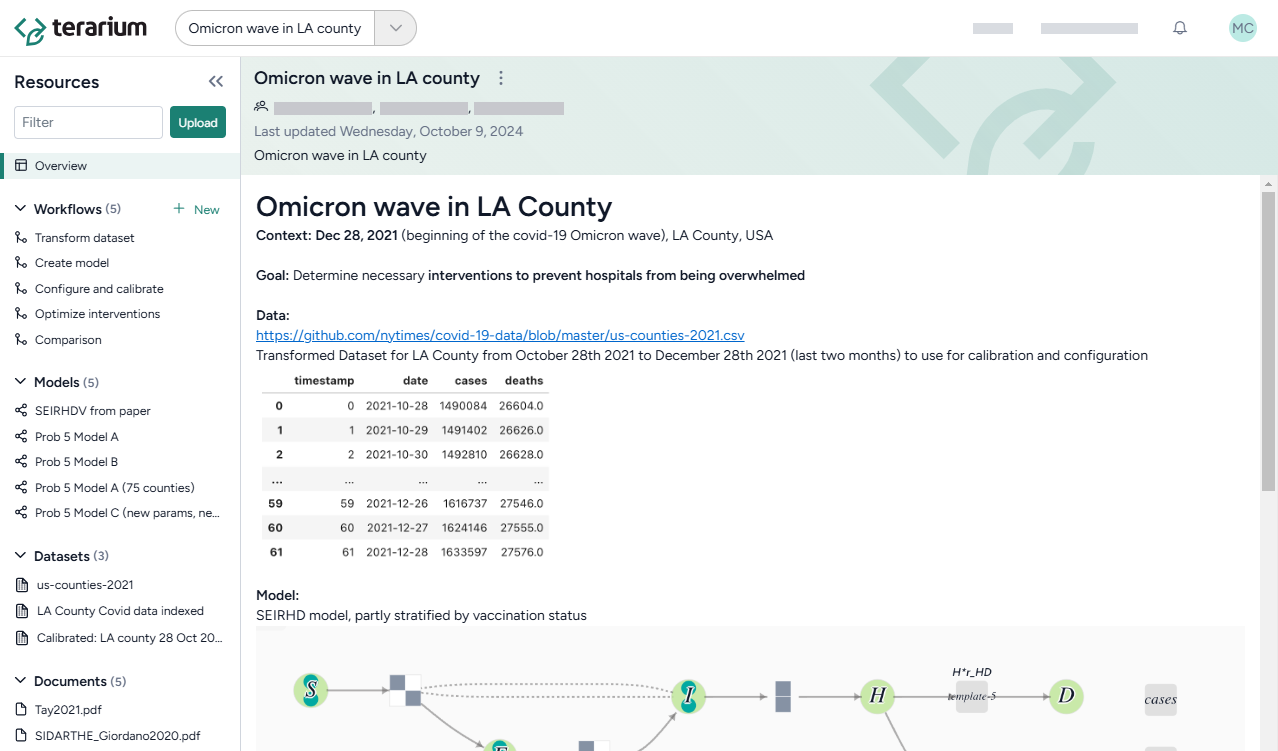
Create a project
- On the Home page, do one of the following actions:
- To start from scratch, click New project.
- To find a project to copy, search My projects or Public projects and then click > Copy.
- To upload a project, click Upload project and drag in or browse to the location of your .project file.
- In the new project, edit the overview to capture your goals and save results over time.
Gathering resources
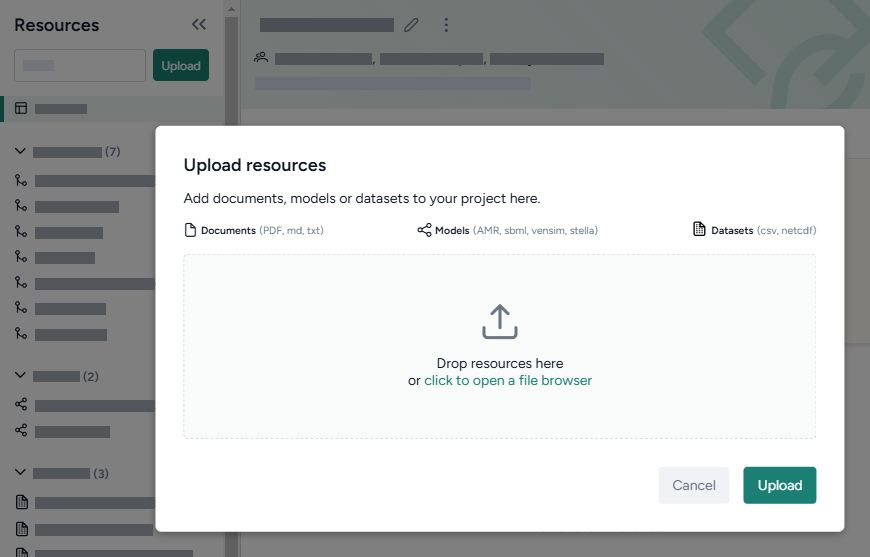
Use the Resources panel to upload and access your models, datasets, and documents.
Note
You can also add resources by:
- Copying them from other projects.
- Creating them using Terarium's library of operators.
Upload resources
- Do one of the following actions:
- Drag your files into the Resources panel.
- Click Upload and then click open a file browser to navigate to the location of the files you want to add.
-
Click Upload.
Note
To view a resource, click its title in the Resources panel.
Building scientific modeling workflows
Create a workflow to visually build your modeling processes. Each box is a resource or an operator that handles a task like transformation and simulation. Chain their outputs and inputs to:
- Recreate, reuse, and modify existing models and datasets to suit your modeling needs.
- Rapidly create scenarios and interventions by configuring, validating, calibrating, and optimizing models.
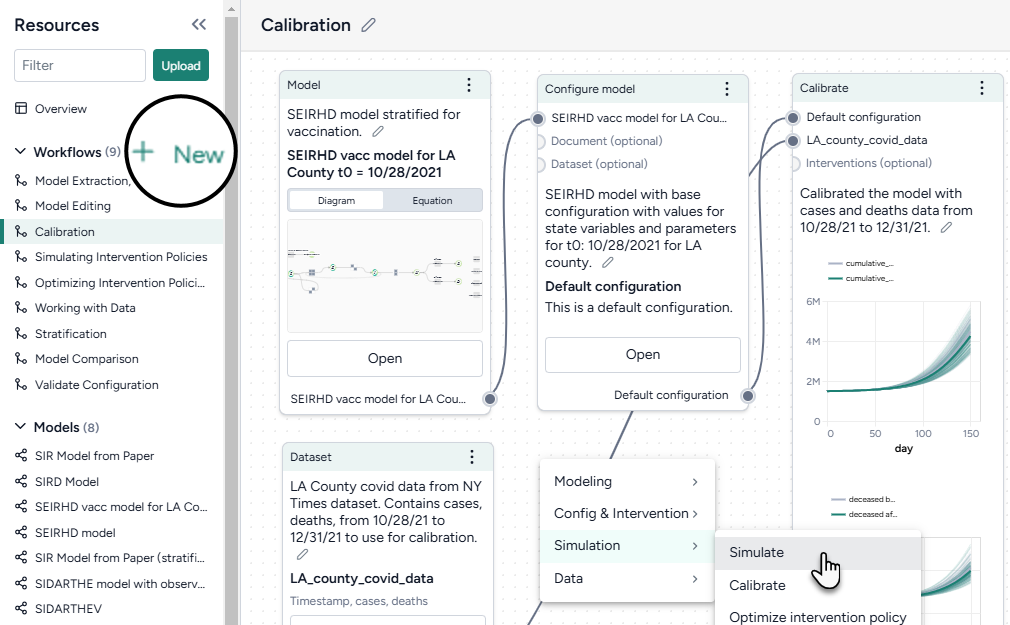
Create a workflow
- In the Workflows section of the Resource panel, click New.
- Select a template, fill out the required fields, and then click Create.
-
Use the canvas to customize your workflow:
- Drag in models, datasets, or documents from the Resources panel.
- Right-click on the canvas to add operators.
- Connect resources and operators by clicking the source input and followed by the output destination. Labels show you the types of resources and operators you can connect.


Using the library of operators
Terarium's operators support various ways for you to configure complex scientific tasks. For example, you can drill down to access:
- A guided wizard for quickly configuring common settings.
- A notebook for direct coding.
- An integrated AI assistant for creating and refining code even if you don't have any programming experience.
Use a Terarium operator
- Make sure you've connected all the required inputs.
- Click Open on the operator node.
-
Switch to the Wizard or Notebook view depending on your preference.
Note
Any changes you make in the Wizard view are automatically translated into code in the Notebook view.
-
Modeling
-
Create model from equations
Build a model using LaTeX expressions or equations extracted from a paper.
Source code -
Edit model
Modify model states and transitions using an AI assistant.
Source code overview -
Stratify model
Divide populations into subsets along characteristics such as age or location.
Source code overview -
Compare models
Generate side-by-side summaries of two or more models or prompt an AI assistant to visually compare them.
Source code overview
-
-
Simulation
- Simulate
Run a simulation of a model under specific conditions.
[Source code]https://github.com/ciemss/pyciemss/blob/e3d7d2216494bc0217517173520f99f3ba2a03ea/pyciemss/interfaces.py#L357){ target="_blank" rel="noopener noreferrer" } - Calibrate
Determine or update the value of model parameters given a reference dataset of observations.
Source code - Optimize intervention policy
Determine the optimal values for variables that minimize or maximize an intervention given some constraints.
Source code - Simulate ensemble
Run a simulation of multiple models or model configurations under specific conditions.
Source code - Calibrate ensemble
Extend the calibration process by working across multiple models simultaneously.
Source code
- Simulate
-
Data
-
Transform dataset
Modify a dataset by explaining your changes to an AI assistant.
Source code user guide -
Compare dataset
Compare the impacts of two or more interventions or rank interventions.
-
-
Config and intervention
- Configure model
Edit variables and parameters or extract them from a reference resource. - Validate configuration
Determine if a configuration generates valid outputs given a set of constraints.
Source code repository - Create intervention policy
Define intervention policies to specify changes in state variables or parameters at specific points in time.
- Configure model