Configure a model
Before running a simulation, you need to configure your model by setting the initial values and parameters for the condition you want to test. You can use the Configure model operator to:
- Automatically extract a configuration from an optional document or dataset.
- Manually enter values and account for uncertainty in any downstream simulations.
- Select from previously saved configurations in the current project.
Configure model operator
In a workflow, the Configure model operator takes a model as an input and outputs a model configuration. You can also input an optional document or dataset (such as a contact matrix or initial populations) from which to automatically extract variable and parameter values.
Once you have selected a configuration, the operator in the workflow shows its name and description.
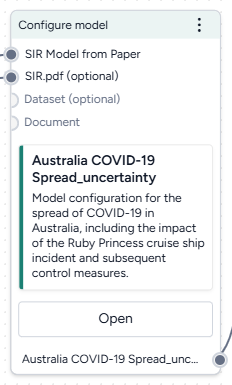
Add the Configure model from equations operator to a workflow
-
Do one of the following actions:
- On a resource or operator that outputs a model, click Link > Configure model.
- Right-click on the workflow graph, select Config & Intervention > Configure model, and then connect the output of a model to the Configure model input.
-
If needed, connect the output of a Document or Dataset to the Configure model inputs.
Configure a model
Configuring a model tailors it to meet the requirements of your simulations, calibrations, and analyses. The Configure model operator adapts to your level of coding experience. You can configure a model using:
- A wizard view with the most common settings.
- A code notebook with an interactive AI assistant.
Open the Configure model operator
- Make sure you've connected a model to the Configure model operator and then click Open.
Edit the name and description of a configuration
To help you understand your workflow at a glance, the name and description of the selected model configuration appear on the Configure model operator in the notebook. You can update these in the wizard to provide more context.
- To change the title, click Edit , enter a unique name, and press Enter.
-
To change the description:
- Click Expand to expand the Description section if necessary.
- Click Edit , enter a unique name, and then click Apply .
- Click Save.
Use the wizard to configure a model
Use the wizard view of the Configure model operator to:
- Extract a configuration from project resources.
- Select from previously saved configurations.
- Manually enter or edit configurations.
Extract a model configuration from a document or dataset
You can use the wizard to automatically attempt to extract variable and parameter values from any attached documents or datasets.
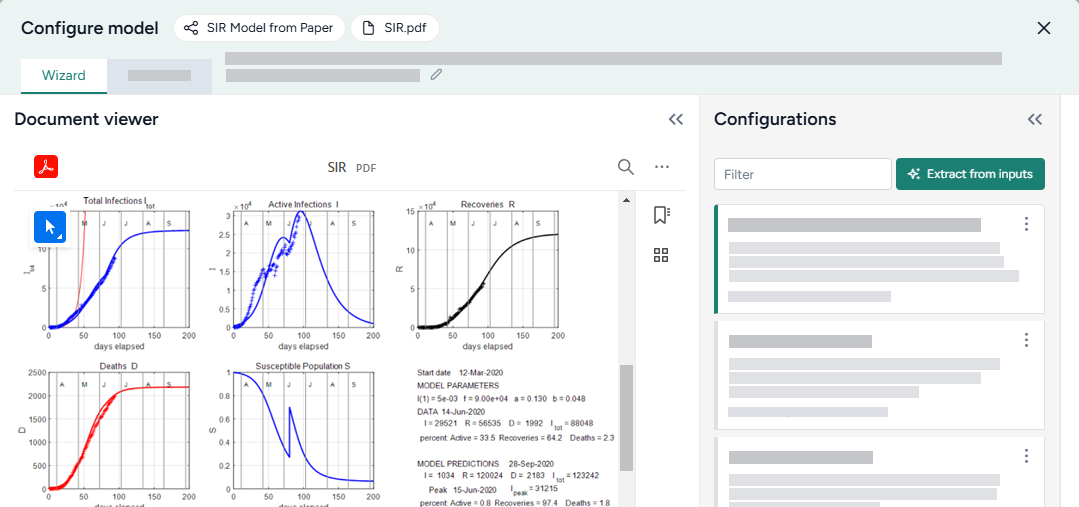
Extract a configuration from a document or dataset
- Click Extract from inputs.
- Review and edit any of the extracted initial or parameter values as needed.
Choose an existing model configuration
Each time you create a configuration for a model, Terarium saves it to your project. Whenever you add or edit a Configure model operator, you can quickly select any of the existing configurations.
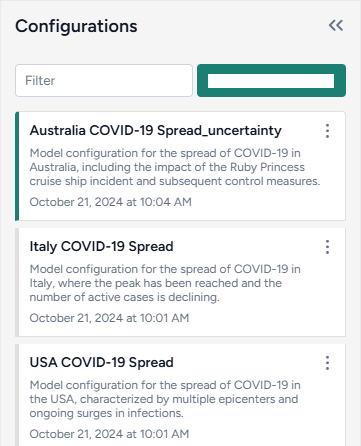
Search the available model configurations
- In the Configurations panel, use the Filter field to search for keywords in configuration names and descriptions.
Choose an existing model configuration
- Review the Configurations on the left. Click a configuration name to select it and review its values.
- Close the Configure model wizard.
Edit or create a model configuration
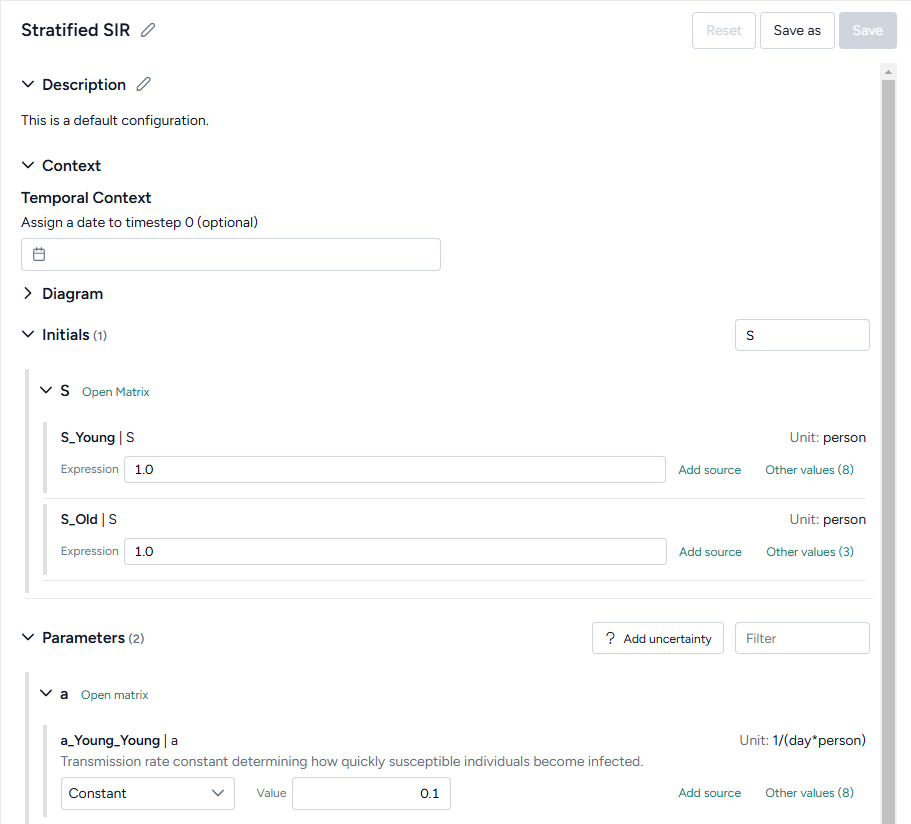
When you edit or create a model configuration, you can set a start date for its timeline, customize initial state and values, and apply uncertainty.
Tip
- The card for the selected configuration in the Configurations panel shows if any of the initials or parameters are missing values. Review this before you finish your configuration to make sure you don't miss anything.
- To manually copy configuration values from an attached document, click Expand to expand the Document viewer so you can review the paper while making your updates.
Set a start date for the model's timeline
Tip
Before setting the start date for the model, make sure you've edited the model metadata to specify the units (days, months, or years) for each timestep.
If your model includes a time component, you can assign a date to the starting timestep (0). This allows you to view and select start and end dates in downstream simulations, calibrations, or interventions.
- Click inside the Date field and choose a start date from the calendar.
Search the model states and parameters
-
Click inside the Filter field for Initials or Parameters and type the name of the state or parameter you're looking for.
Note
The filter works only with original, unstratified state and parameter names. To find a stratified state or parameter, search using the name of the original state or parameter it was derived from.
Edit the initial value of a model state
You can edit the initial values of model state variables either as numeric values or as expressions involving other states or parameters.
-
If your state variable is stratified, click Expand to show the stratified states.
Tip
To set all the stratified variables at once, copy a range of values from a spreadsheet, click Open matrix, and then click Paste.
-
Do one of the following actions:
- Enter a numeric value or a SymPy expression in the Expression field.
- Click Other values, select a value from another model configuration, and then click Apply selected value.
-
(Optional) Click Add source and enter an explanation for how or why you came up with the value.
Edit the value of a parameter
-
If your parameter is stratified, click Expand to show the stratified parameters.
Tip
To set all the stratified parameters at once, copy a range of values from a spreadsheet, click Open matrix, and then click Paste.
-
Choose the type of value to enter:
- To enter a single unchanging value, select Constant and enter the value.
- To enter a range of possible values, select Uniform and enter the minimum and maximum possible values.
- Alternatively, click Other values, select a value from another model configuration, and then click Apply selected value.
-
(Optional) Click Add source and enter an explanation for how or why you came up with the value.
Add uncertainty to parameters
You can quickly add uncertainty to all or some of your parameters with constant values.
- Click Add uncertainty.
- Enter a percentage value for the uncertainty range. For example, if the parameter's value is
1and you set the uncertainty to10%, the parameter becomes a uniform distribution between0.9(Min) and1.1(Max). -
Select the parameters that you want to apply uncertainty to and then click Apply.
Note
You cannot apply uncertainty to parameters that are already uniform distributions.
Write initial values as expressions
In addition to setting the initial values of model state variables as numeric values, you can define them as expressions involving other states or parameters. Initials written as expressions should follow SymPy syntax. They can include:
-
Elementary operators (
*./,+,-, and**).Example
(S + I + R) ** (1/2) -
Mathematical and logical operations for symbolic-to-numeric computation. Simply call the functions by removing the
sympy.prefix.Example
log(Pi + 1e-9, 10) * exp(-t) + Max(-10, Pi * t)
Note
In the wizard view, only the initials support SymPy expressions. You can add SymPy expressions for initials, observables, and rate laws in the notebook view.
Use the notebook to configure a model
In the notebook, you can prompt an AI assistant to:
- Describe the model's configuration
- Modify parameters, initial conditions, and other attributes of the model.
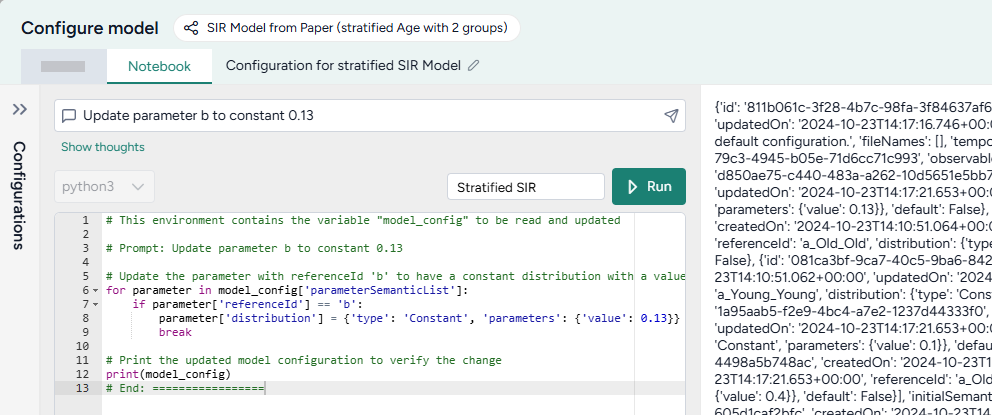
You can edit anything the assistant creates or add your own custom code.
Tip
The assistant can be helpful when you need to set expressions or values that are the product of complicated formulas.
Open the Configure model notebook
- Click Notebook.
Prompt the AI assistant to configure a model
The Configure model AI assistant interprets plain language to answer questions about or stratify your model.
Tip
The AI assistant can perform more than one command at a time.
Ask the AI assistant a question about your model configuration
- Click in the text box at the top of the page, enter your question, and then click Submit .
- Click Show thoughts to view the answer.
Prompt the AI assistant to configure your model
- Click in the text box at the top of the page and then do one of the following actions:
- Select a suggested prompt and edit it to fit your model and the configuration you want to make.
- Describe the configuration you want to make.
- Click Submit .
-
Review and edit (if necessary) the generated configuration code.
Note
In some cases, the AI assistant may ask for clarifying questions before generating code. For example, if you ask to update a stratified parameter by its original name, it may ask if you want to update all the stratified parameters or only one. In these cases, update your prompt as needed and then click Submit again.
-
Click Run.
- Click Wizard and find the modified initials or parameters to verify that they were correctly updated.
Add or edit code
At any time, you can edit the code generated by the AI assistant or enter your own custom code.
Add or make changes to model configuration code
- Directly edit the python code.
- Click Run.
Write initials, observables, and rate laws as expressions
In addition to setting initials, observables, and rate laws as numeric values, you can define them as expressions involving other states or parameters. Expressions should follow SymPy syntax. They can include:
-
Elementary operators (
*./,+,-, and**).Example
(S + I + R) ** (1/2) -
Mathematical and logical operations for symbolic-to-numeric computation.
Example
```python log(Pi + 1e-9, 10) * exp(-t) + Max(-10, Pi * t)
Example
t = sympy.Symbol('t')
EV_i_t_raw, EV_min, EV_max = sympy.Symbol('EV_i_t_raw EV_min EV_max')

model.observables['NewObs'] = Observable(
    name = 'NewObs',
    expression = SympyExprStr((sympy.log(EV_i_t_raw * 1e9, 10) - sympy.log(EV_min * 1e9, 10) / (sympy.log(EV_i_t_raw * 1e9, 10) - sympy.log(EV_max * 1e9, 10))))
Examples of AI-assisted model configurations
The following examples show how to prompt the Configure model AI assistant to make commonly used configurations.
Ask a question about the current model configuration
What are the model parameters and current values?
Set a range of values for a model parameter to account for uncertainty
Update parameter beta to a uniform distribution with max 0.5 and min 0.2
Save a model configuration
By default, any changes you make to initials or parameters are automatically saved to the configuration selected in the Configurations panel. Saved model configurations appear any time you connect the model to a Configure model operator in your project. The selected configuration becomes the output of the Configure model operator.
Save your edits as a new model configuration
- Click Save as.
- Enter a unique name for your configuration and click Save.
Undo your edits
- Click Reset.
Choose a different output for the Configure model operator
- Select a configuration from the Configurations panel.
Download a model configuration
Note
You can import downloaded model configurations into other projects. Doing so recreates the model from which the configuration was derived.
- In the Configurations panel, click > Download.
Use the model configuration output
With the configure model output, you can: